 ObsiKO
Prompt Helper 🪄
"What do I even say to the AI to get it to understand me...?" Good prompts follow a formula! ObsiKO's Prompt Helper lets you tap building blocks to assemble a well-structured prompt, and even puts together the harness (rules and commands) the agent reads automatically — all in one place.
← Home: ObsiKO 101 · Parent: 16 AI Agent
Where do I open it? 🔭
- Open the right side panel and pick Prompt Helper (✨) from the nav. → 02 A Tour of the Screen
- The panel has two tabs: Prompt Writing and Harness Building. It works everywhere — web, desktop, mobile. Desktop-only bits are just AI Polish, Test with Agent, and the created-commands list(which reads the real files); SKILL.md's ✨ Complete with AI works on phone and web too, as long as you have an API key.
✍️ Prompt Writing tab — a well-structured prompt in one go
Click a block button and its skeleton drops right in at the cursor. Just fill in the blanks!
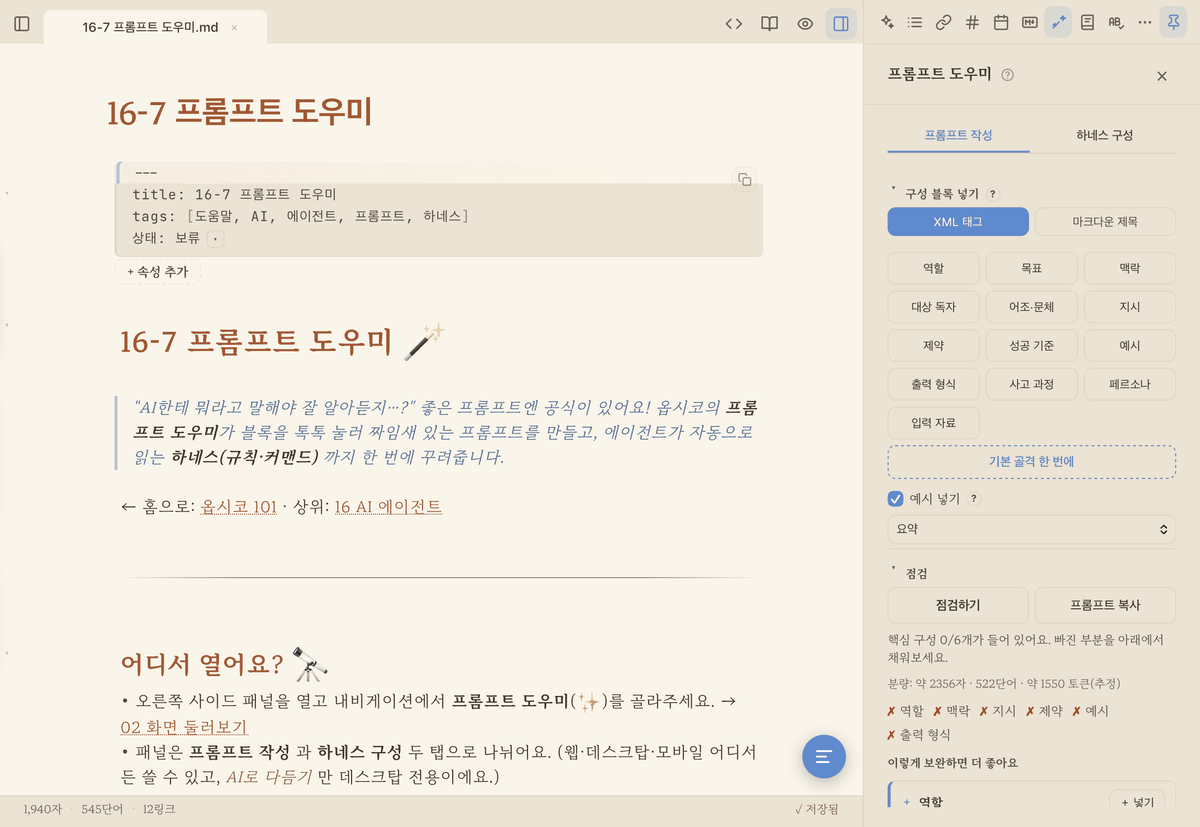
▲ Role, context, instructions, examples, output format… click the blocks to assemble a well-structured prompt in one go.
- 13 building blocks: Role · Context · Instructions · Constraints · Examples · Output Format · Reasoning Process · Persona · Input Material · Goal · Target Audience · Tone/Style · Success Criteria
- Format toggle: insert the same block in XML style (
<role>…</role>) or Markdown style. (Claude in particular understands XML tags very well!) - Insert examples: flip the switch, pick a topic, and click a block — it fills in with a real example tailored to that topic. Great to look at and copy when you're stuck!
- Check it: analyzes the prompt currently written in your note and points out what's there / what's missing, along with friendly tips on "here's how you could improve this." ✅
- Copy whole prompt 📋: puts your entire prompt on the clipboard. Handy on web and mobile, where AI Polish isn't available — paste it straight into another AI app.
- AI Polish: lets AI directly rework your draft into a clearer, more structured prompt. The result can be copied, inserted into the body, swapped in for your selection, or saved as a note, and the [Diff] button shows you line by line what changed versus your original.
- Test with Agent: drops your finished prompt straight into the AI agent's input box (you review it and hit send yourself).
🔧 Harness Building tab — laying the groundwork for the agent
Beyond writing one good prompt, these tools let you set things in stone as reusable assets (commands, rules, schemas) that the agent reads on its own. Once you create them, the ObsiKO agent recognizes them right away!
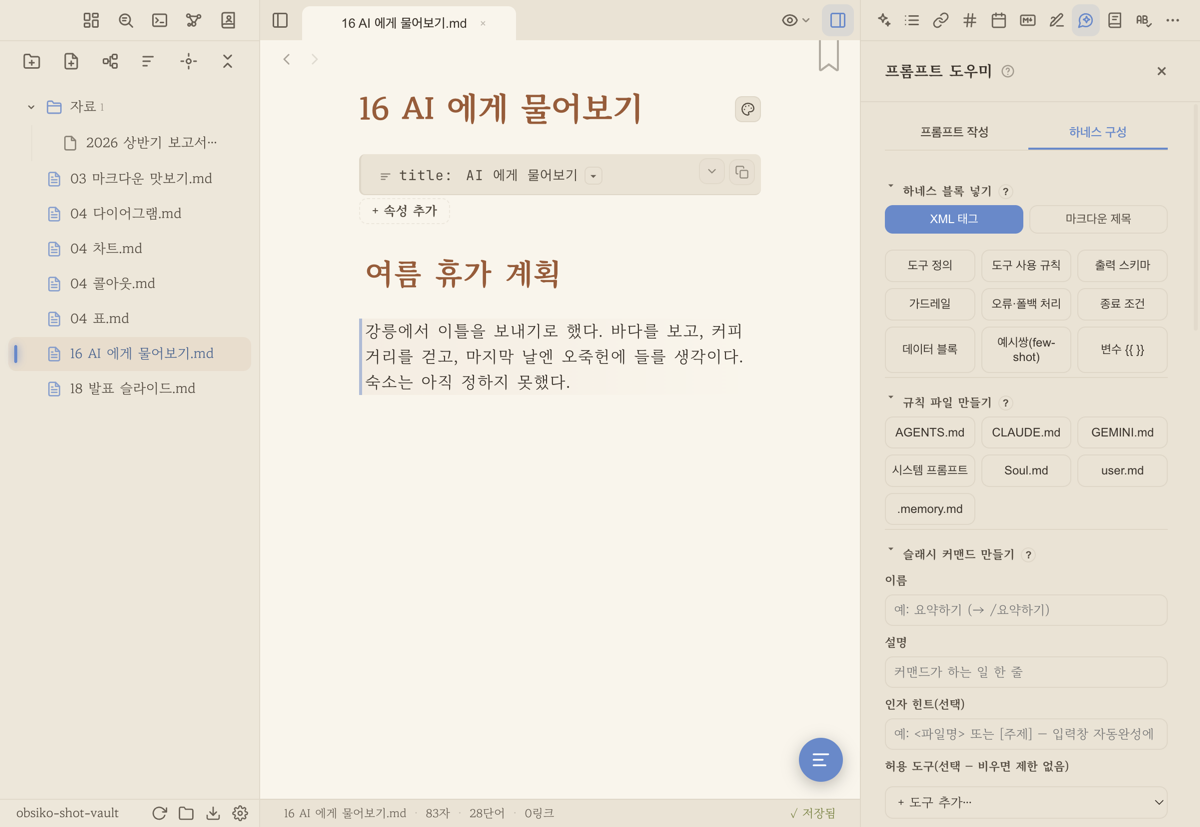
▲ Rule files, slash commands, harness blocks, and variables — all with one button click!
- Create rule files: one click builds the skeletons of
AGENTS.md·CLAUDE.md·GEMINI.md, a system prompt, and even the LLM-wiki system files (soul, user, memory) right in your vault. These are rules the agent reads automatically while it works. (If a file already exists, it won't overwrite it — it just opens that file instead.) → 16-4 Building an LLM Wiki - Create slash commands: enter a name, description, and body, and a command file is created in
.claude/commands/. Then you can call it right from the agent's input box with/name! Any extra text the user appends fills the$ARGUMENTSslot in the body. → 16-1 Basic Usage - Beyond name, description, and body, you can also set an argument hint (the guide shown in the input box — e.g.
<topic>), allowed tools (pick from a dropdown, added as chips; leave empty for no restriction), and a model (Fable · Opus · Sonnet · Haiku; leave empty for the default). - Below the form, the 'created commands' list shows everything you've made so you can edit or delete it (on desktop it reads the real files, so commands you or the agent made by hand show up too).
- Reference notes 🧑: press Add note and pick character, world or style notes from the list — when you call this command with the helper button in the AI panel, those notes are attached to the chat. Every command you make also shows up in the helper list: pick one and a new chat opens that keeps that role until the chat ends (calling it with
/nameapplies it just once). → 16 AI Agent - Create SKILL.md (agent skills) 🧩: enter a name, description, allowed tools, and body, and a
.claude/skills/<name>/SKILL.mdfile is created. If a slash command is "something you invoke," a skill is a procedure the agent pulls out on its own when it recognizes the situation. That's why the description matters most — spell out exactly when this skill should apply (it's required). - The Fill skeleton button drops in a
## When to use / ## Steps / ## Notesframe in one click. - ✨ Complete with AI: jot the name, description, and body down roughly, click it, and AI polishes them into a well-formed skill document and fills the form. It never quietly creates the file — read it over and hit [Create] when you're happy. (Works on iPhone, Android, and web too, with just an API key → 16-8 Chat-only Mode)
- Skills you create can be edited or deleted from the list below. Creating one under the same name updates that
SKILL.mdinstead of making a duplicate. - Create subagents 🤖: enter a name, description, tools, model, and body, and a
.claude/agents/<name>.mdfile is created (Claude Code compatible). The body is that subagent's system prompt, and the description is how the main agent decides when to hand work off to it (so it's required). Use it when you want to split roles — a researcher, a reviewer, and so on. Skeleton filling, editing, and deleting work just like skills. - 9 harness blocks: building blocks that drop a skeleton in at the cursor — tool definitions, output schema (JSON), guardrails, few-shot example pairs,
{{ }}variables, tool-use rules, error/fallback handling, stop conditions, data blocks. Perfect for writing robust agent instructions. - Fill in reusable variables: paste in a template containing
{{variables}}, likeWrite {{recipient}} an email about {{topic}}, click Find Variables, and an input box appears for each variable. Fill in the values and click Insert to drop in the finished sentence! Great for quickly churning out frequently used templates.
💡 The rules, commands, and skills you create in Harness Building are consumed directly by the desktop agents (Claude, Gemini, Codex). The loop of "write a prompt → put it to use right away" closes inside the app. Subagents are files for external tools that read
.claude/agents/, such as Claude Code (ObsiKO's own agent doesn't hand work to subagents — to keep a role and call it when needed, use a command as a helper). → 16 AI Agent📱 To use them in phone/web chat too: slash commands made here are saved to
.claude/commands/, but chat-only mode on phone and web reads only the_ObsiKO/commands/folder (it can't open hidden dot-folders). So if you want a command available everywhere, put a second copy of the same file at_ObsiKO/commands/name.md. (If both exist with the same name,_ObsiKOwins.) Skills and subagents are desktop-agent features. → 16-8 Chat-only Mode
When to reach for this 🎯
- When you're writing your first prompt and have no idea what to include → blocks + examples in the Prompt Writing tab
- When you want to check whether your prompt is good enough → Check It
- When you're going to give the same instruction repeatedly → lock it in as a slash command
- When you want the agent to reach for that procedure on its own → create a SKILL.md
- When you want to split roles like research and review → create subagents
- When you want to apply consistent rules to the agent every time → create rule files → 16-4 Building an LLM Wiki
← Previous: Recommended Prompts · Home · Next: Chat-only Mode (Mobile & Web) →