 ObsiKO
Graph View
Let me spread out every note in your vault like stars scattered across a vast universe! The more links a note has, the more popular it is — and the brighter it shines. ✨
← Back home: ObsiKO 101
Launching into orbit 🚀
- Click the Graph View button in the sidebar header, right next to the search and command palette buttons (over by the statistics button).
- Graph View opens in a fresh tab. Close the tab when you're done exploring to land right back on your document.
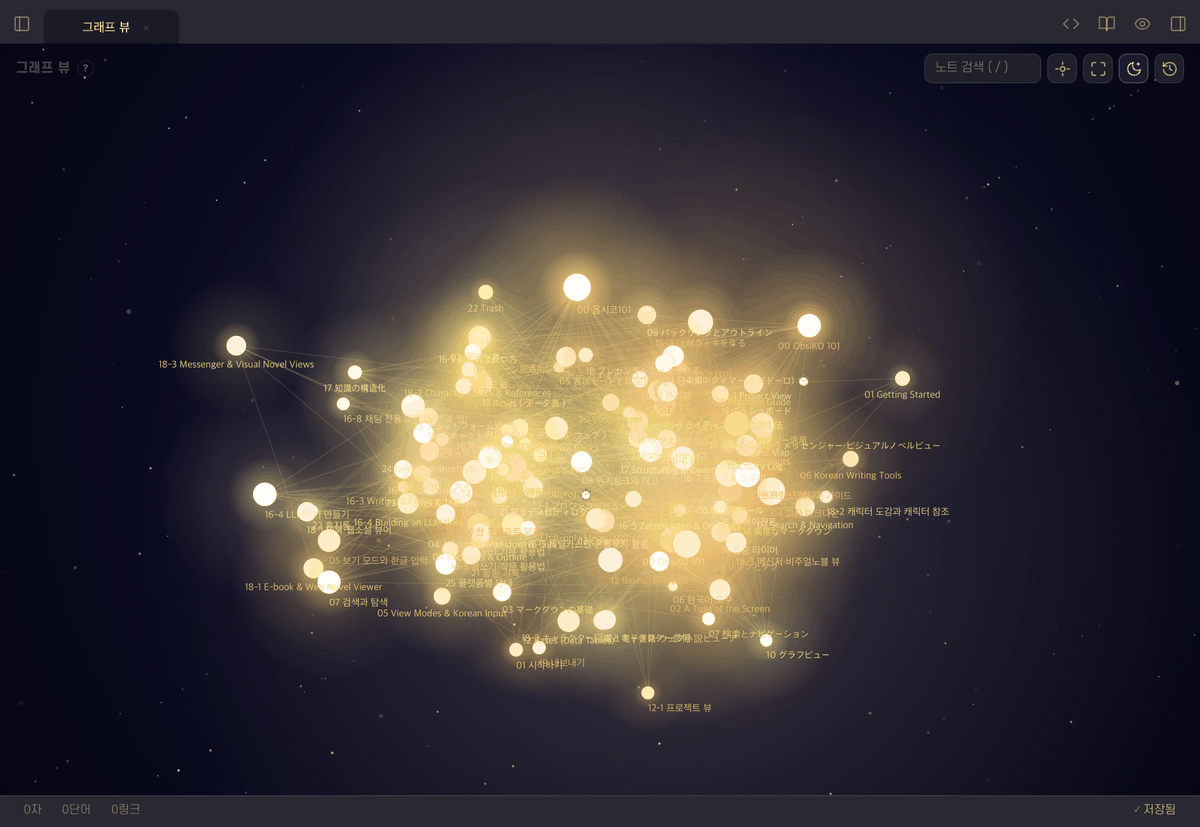
▲ Notes are stars, links are constellations! The more links a note has, the brighter its star.
What's out there in your universe? 🌌
- Stars = notes, and the thin lines connecting stars = links (just like a constellation!).
- Mind maps (
.canvas) show up as stars too — connected by lines to any note that a file card inside the canvas points to. - Lines that come from AI chat transcripts are faint and dashed — a
[[link]]written in a chat transcript (_ObsiKO/chats/) isn't a link between your notes but a "mentioned in a conversation," so it's drawn faint and dashed to tell it apart. If the same two notes are also linked directly, the line is a normal one. → Personal Memory - Leave the graph open while you create or edit notes, and your universe updates itself automatically (thanks to vault watching). Notes that have already been scanned are cached, so even huge vaults load fast.
- Stars with more incoming links shine brighter, and their size is a mix of link count plus a little ObsiKO magic (randomness). Starlight is drawn with a crisp core plus a soft glow that fades into the distance, for that true night-sky feel.
- Star colors shift subtly based on your current theme's highlight color.
- Watch it for a moment and you'll notice the whole galaxy slowly rotating around its center while gently drifting outward, like a real spiral galaxy. Each star spins at its own pace (some fast, some lazy), which makes it feel truly alive. Perfect for zoning out!
- 📱 On iPhone and iPad, we go easy on your battery and heat: once there are a lot of files (stars), the graph settles into place after the first few seconds and then gently pauses the rotation, freezing the view to give the processor a rest (with fewer notes, it keeps spinning just like on desktop). Tap, drag, or zoom, and it instantly springs back to life. (Desktop always spins at full quality, no matter how many files you have.)
Move the stars around 💫
- Click a star and a small, softly-glowing info card pops up right there — showing the note's name and link count, with an [Open] button to jump to it.
- Double-click a star to skip the card and zip straight to that note.
- Hover over a star and only its directly connected neighbors stay sharp while everything else dims slightly, giving you an instant read on who this note is close to. This highlight isn't a hard on/off flip — it's a gentle fade in and out, easy on the eyes (the same goes for click and search highlights).
- Grab a star with your mouse and drag it. It accelerates smoothly, and when you let go it drifts gently through space for a moment. Any linked neighbor stars tag along too — really charming to watch!
- Hit Fit to View to arrange this whole vast universe neatly onto one screen.
Find a star fast — search 🔎
- Type part of a name into the search box in the top left (shortcut
/). Matching stars stay bright while the rest dim. - Initial-consonant search works too — typing just
ㅎㄱwill find your한글note.
Centered on what you were reading — active marker & local graph 🎯
- The star for the note you were editing right before opening the graph gets a ring marker, so you instantly know "that's where I am."
- Flip on the Local Graph toggle in the toolbar to keep only the notes within two hops of the note you were viewing (or the star you clicked), for a narrow, focused look. Especially handy in large vaults!
- Notes with no links at all — orphans — show up desaturated. Spot a faded star and you'll instantly think, "I should link this one to something." 🧩
Viewing modes to match your taste (next to the Fit-to-View button!) 🔭
- History View: watch your stars 'born' one by one in chronological order, starting from the very moment you first created each note.
- Space Background (dark mode): swap the background for a pitch-black cosmic gradient with twinkling starlight. It's on from the start — if you'd rather have a light background, just flip this button off, and it stays off.
- Turning it on also darkens the controls — buttons, the search box, the relation chips — so nothing glares at you even if you're on a light theme.
Typed edges that glow with relationship colors 🔗
- Write typed relationships like
is-a,part-of, orcausesin a note's frontmatter, and the lines connecting those stars will glow with predicate-specific colors and directional arrows! - Relation chips: when the vault has typed relations, chips appear at the bottom-left of the graph. Toggle a chip off to temporarily hide just that relation's lines and keep only the web you care about (the layout stays put). Register a
color:in the relation dictionary and the line colors follow it! → 16-5 Zettelkasten & Ontology is-ain blue ·part-ofin green ·causesin red ·opposesin magenta … zoom in or hover and the relationship name floats up over the line too.- If you're not sure what a color means, hit the help ('?') button in the top left to check the legend. → For more details: Structuring Knowledge
PARA notes shine differently 🗄️✨
Notes you've tagged with a para property via PARA stand out in the universe like nothing else.
- Their colors invert so they pop, and projects (project) gently shimmer — that feeling of "this is a live, moving task right now!"
- Areas (area) grow bigger and emit rings of light the more attached projects and links they carry, showing off their "influence".
- Projects cluster near their own area (parent_area) — drag an area and its projects follow elastically. Hierarchy properties like parent cluster into families the same way.
A theme that's a perfect match 🎨
- Try setting your color preset to Cosmic Star in Settings. It pairs stunningly well with this whole space concept! → Go change your theme: Settings & Themes
← Previous: Backlinks & Outline · Home · Next: Mind Map →