 ObsiKO
A Tour of the Screen
Let's take a light stroll around every corner of ObsiKO. Once you know what's where, everything else is a piece of cake! 😎
← Zip back home: ObsiKO 101
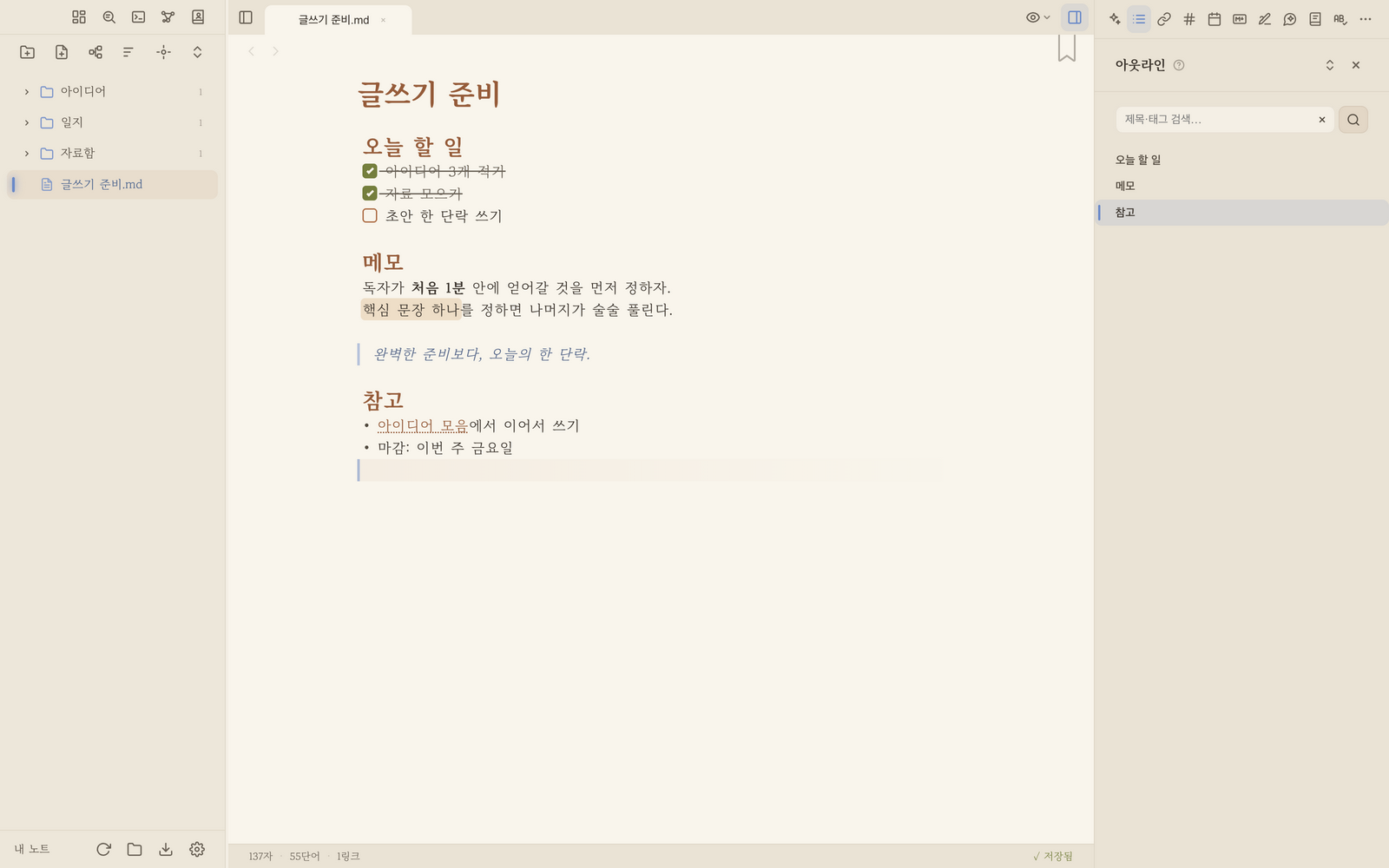
▲ ObsiKO at a glance: the file tree on the left, the editor in the middle, the tool panel on the right.
Left — home to your notes, the file tree (left sidebar) 🗂️
- Shows every folder and file in your vault in a tree structure you can take in at a glance. Even as folders get deep, vertical guide lines keep the indentation clear so you never lose your way.
- Click a file lightly to open it, and click a folder to have it glide open or closed. Use the buttons above the file tree to expand or collapse everything at once.
- You can drag and drop files around to move them, and right-click (or press and hold) to work all kinds of magic — rename, delete, create a new note, and more!
- Quick row buttons ⋯ +: Hover a file and a ⋯ appears (exactly the right-click menu); folders get + (new note in that folder) plus ⋯. On phones and tablets they're always visible, so one tap replaces the long-press.
- Drag a file from your computer onto the tree and it gets copied straight into your vault. → 07 Search & Navigation
- Buttons at the very top of the sidebar 🧭: Dashboard 📊 (⌘⇧B) / Search 🔍 (⌘⇧P) / Command Palette ⌨️ (⌘P) / Graph View 🌌 (⌘⇧G) / Codex 📇 (⌘⇧K) — all your character and place cards in one spot!
- File tree buttons below them: New… menu 📁 / New Document 📝 / New Mind Map 🧠
- The New… menu 📁 doesn't just make folders! Press it and out unfolds New Folder · New note from template · Date notes ▸ · New Base (table) ▸ · New Project ▸ · PARA Board · Library · Source box · Ledger · Add knowledge pack.
- Items marked ▸ open a little menu beside them the moment you hover (on phones and tablets, just tap). Date notes holds today's / this week's / this month's note plus the unique note; New Base and New Project hold the scope — whole vault · a folder · a tag — and picking one creates it right away, with no popup.
- A unique note is named by the moment you made it, like
202608061530(for Zettelkasten — jot first, append a title after; pick a collection folder in Settings ▸ Today's note). → 12 Bases (Data Tables) · 12-2 Library & Reading Log · 12-3 Ledger · 12-4 Knowledge Packs
- Organizing buttons next to them: choose a sort order ↕️ (by name, modified date, or created date) / jump straight to the file you're currently viewing in the tree 🎯 / toggle to expand or collapse all folders at once 🔽
- Footer buttons at the very bottom: Open Folder 📂 (⌘O) / Export 📤 (⌘⇧E) / Settings ⚙️ (⌘,) → 23 Settings & Themes · 19 Export
Becoming a file tree pro 🏆
- Bookmarks 🔖: For notes you open often, press the bookmark ribbon at the top-right of the editor (it stays put as you scroll) or right-click ▸ "Add to Bookmarks". They pin to the "Bookmarks" section at the very top of the tree, and once there are many you can drag them into groups. Bases (.base) and mindmaps (.canvas) use the very same ribbon in the very same spot. → 07 Search & Navigation
- Folder colors 🎨: Right-click a folder and you'll find a row of color dots right inside the menu. Tap one of the 8 colors and you're done (the striped dot at the front means "back to the default color"). The folder name and even its child indentation guide lines get tinted with that color, so you can tell projects apart at a glance!
- File count badge: The number right next to a folder's name tells you the total file count, including subfolders.
- Colour your notes 🎨: Put
colorin a note's frontmatter and its file-tree icon takes that colour too. It's the same value as the title colour band and the tab colour, and a note's own colour beats the folder colour (only uncoloured notes inherit it). For Bases, the colour you paint on the view title shows on the icon. - The palette button 🎨 at the right end of the title opens the colour panel already set to this note's colour — pick one, press 'Set as note colour', done (no hand-written frontmatter). → 04-1 Frontmatter Properties
- Multi-select: ⌘(Ctrl)+click to gather items one by one, and Shift+click to select a whole range. Right-click for "Move n items…" or "Delete n items" to handle them all at once. (Press
Escto clear the selection.) - The right-click menu is grouped ▸: The things you reach for most stay right there (New Note, Open, Bookmark, Rename, Delete…); the rest live inside groups like
Path & move,Convert,Export & convert, andNotes in this folder. With a mouse they fly out to the side; with a finger, a long press swaps the list in place (‹ Backreturns). - Move to folder…: Choose this from right-click ▸
Path & moveto open a picker with a folder search box, letting you move things precisely into deeply nested folders without any dragging. - Copy wiki link: Right-click ▸
Path & move→ "Copy Wiki Link" to instantly copy a[[Note]]link and paste it into another note. ("Copy Path" is in the same group.) - Insert into current document 📎: No dragging needed. Right-click a file and pick "Insert into current document" — while you're in a note it drops a link at the cursor (
[[Note]], an embed for canvases, an image for pictures); while you're in a mind map it drops a file card. Especially handy on a phone, where a drag can slip away mid-gesture. If there is nowhere to insert (a special view like the dashboard, or the file itself), the item simply isn't shown. - Zip around with just the keyboard ⌨️: With the tree focused, use ↑↓ to move, →/← to expand/collapse folders (← also jumps to the parent folder), Enter to open, F2 to rename right there on the spot, and Delete (⌘⌫ on Mac) to send to Trash! And just type letters to jump to the item that starts with that name — it even understands initial consonants (e.g.
ㅎㄱ→한글).
Center — your wide-open field, tabs and editor 🏟️
- Tab bar: Keep several documents open at once and hop between them, just like a browser! On desktop, drag a tab to reorder — the new order sticks around next time you open the app. On phones and tablets dragging doesn't reorder — a narrow tab bar is something you swipe sideways to browse, so swiping just scrolls and tapping just switches (shrink a desktop window to mobile size and reordering switches off, then comes back when you widen it).
- Pick up where you left off ↩️: come back from another tab and your cursor line and column, and the view you were looking at, are restored. If you only scrolled to read without moving the cursor, you land back at that spot (with the cursor still where it was). This survives restarting the app too. If the note got shorter and that line is gone, it starts at the top rather than guessing.
- Title bar: Change the file name quickly and easily right from the very top of the document.
- Editor: This is where your wonderful writing comes to life! Feel the hybrid editing where wherever the cursor passes instantly turns into gorgeous formatting. → Curious about this hybrid magic? 05 View Modes & Korean Input
Bottom — your personal assistant, the status bar 📊
- Wondering how much you've written so far? It kindly tells you character count, word count, link count, estimated reading time, and even manuscript-paper page count.
- The file path now shows on the left by default (relative to your vault — truncated when long, full path on hover).
- You can also turn on backlink count — how many other notes point at this one with
[[wiki links]](Settings ▸ Status bar items, off by default). - When the window gets narrow, items quietly drop off from the right (manuscript → reading time → backlinks …) and come back when you widen it. It never wraps to a second line.
- You can also check whether your writing is being safely saved right here!
Right — your all-purpose toolbox, the right side panel 🧰
Swipe left or use a single button to slide it open, and switch between tools with the navigation at the top of the panel. (Only one shown at a time!)
- Outline (Table of Contents): See the skeleton of your writing at a glance. Switch between Structure ↔ To-dos with the tabs up top (gather just the checkboxes, and drag to reorder them). → 09 Backlinks & Outline
- Connections: The links and relationships this note points to (outgoing), and the notes that point back to it (incoming) — all in one panel! → 09 Backlinks & Outline
- Categories: #tags, properties and kinds & links in one panel — each name carries its usage count, and clicking one expands everywhere it's used → 08 Wiki Links & Tags
- Colors: Pick a colour from the wheel and drop it at your cursor as a code, or make it this note's colour — plus matching auto palettes and every colour your vault already uses → 08 Wiki Links & Tags
- Source Search: Look up books and papers and turn them into a note complete with cover, author and abstract (paste a DOI, arXiv ID or ISBN and it understands that too) → 20 Web Clipper
- Reference View: Keep another document, image, PDF, video — even a mind map or base — floating alongside as you write for easy reference. 'Open' button, zoom — all supported → 07 Search & Navigation
- Search results: press 'Keep results beside' in the search box and the list stays here — clicking a result to open a note won't make it disappear (everywhere but phones) → 07 Search & Navigation
- Image Search: Search free images (Openverse, Pixabay, Pexels, Wikimedia, Giphy) right in the panel and drag them into the editor or mind map! Hover for a large preview, use the HD button to save full resolution, and hit ↗ to check the original page → 03 Markdown Basics
- Dictionary / Spell Check: A dependable Korean-language teacher for flawless writing! Insert definitions into your note and even listen to pronunciation → 06 Korean Writing Tools
- Calendar: Browse notes by date, with today's schedule (to-do) timetable and alarms all in one place! (Use the Calendar+ button in the header to whip up today's note in an instant!) → 13 Calendar
- Focus Timer (Pomodoro): Get into flow with 5–60 minute sessions! Goals and completion rate, plus a character counter too → 14 Focus Timer
- Random Box: For when you just can't decide. Roll a whole character (birthday, star sign, birthstone and birth flower included), dice that actually tumble (d4–d20, d%, added up in one handful like 2d6 + d20, or any number of sides you make yourself), and a wheel that spins (add items one at a time, each with its own share — hold Spin longer for a harder spin). Drop the result into your note with one tap. The Places tab rolls a whole location — village, dungeon and all — with the meaning of its name attached 🎲 → 18-4 Random Box
- Cheat Sheet: A quick reference table that even helps you insert Markdown syntax with one touch when you can't remember it (⌘⇧M). Use the search box at the top to find the syntax you want right away (favorites are searchable too), and hover over an item name to pop up a rendered preview. (Rows with nothing to render — like Auto-fill — carry an explanation next to each code instead of a preview.) The Expand All/Collapse All buttons make it easy to skim through everything at once.
- There's a special-character table in there too — arrows, maths symbols, brackets, currency, numbers (circled ① ⑳ ㉑ ㊿, filled ❶ ⓴, parenthesized ⑴, dotted ⒈, super/subscript ² ₂, fractions ½ ⅓) and music symbols (notes ♩ ♪ ♫ ♬, accidentals ♭ ♮ ♯, clefs 𝄞 𝄢, barlines and repeats, fermata/breath marks/dynamics) — tap to insert.
- Activity Log: A time-ordered record of everything that happened in your vault (the clock button in the header also opens a note's version history!) → 21 Activity Log
- Trash: Bring back deleted files → 22 Trash
- Prompt Helper: Build well-structured prompts with blocks, plus agent rules and command harnesses, all in one place ✨ → 16-7 Prompt Helper
- AI Agent: Call up your very own smart AI assistant 🤖 (full functionality on desktop; a chat-only mode where you just enter an API key also works on web and mobile) → 16 AI Agent · 16-8 Chat-only Mode (Mobile & Web)
- AI Change History: For every agent run, see exactly what changed with a line-by-line diff — and revert anything you don't like! (Desktop) → 16 AI Agent
- Writing Helper: Get a structure check on the note you're writing, plus questions that push your own thinking further and genre-aware editing suggestions ✍️ → 16-12 Writing Helper
- Help: This very "ObsiKO 101" you're reading, right inside the app! Search to find what you need right away, and flip through it like a book with Back · Previous/Next Chapter buttons. Click a screenshot to see it larger. 🔍 Chapters you keep coming back to can be saved with the bookmark button at the top — they gather at the top of Contents.
Top — the View menu, for looking at things every which way 👁️
- Press the View button (👁) at the right of the tab bar and a menu slides open. From here pick Source view (⌘⇧O) · Reading mode (⌘⇧V) · Zen mode (⌘⇧Z) — whichever suits your taste! → 05 View Modes & Korean Input
- If the document has a special incantation (frontmatter) on it, extra items — Slide · Book · Web Novel · Messenger · Visual Novel — quietly appear lower in the same menu. → 18 Making Presentations · 18-1 E-book & Web Novel Viewer · 18-3 Messenger & Visual Novel Views
- The doors into the mysterious Graph View (⌘⇧G) and the Dashboard (⌘⇧B) are at the very top of the left sidebar.
Opening several windows 🪟 (desktop)
- Want two vaults side by side? Open a new window: run
New windowfrom the command palette (⌘P), or on macOS use File ▸ New Window. If you use it often, assign a key in Settings ▸ Shortcuts. - A new window starts on the empty welcome screen — open a different vault from there.
- One vault, one window. If you try to open a vault that's already open, ObsiKO brings that window to the front instead of opening it twice (this is what keeps two windows from overwriting each other's saves in the same note).
- Open tabs and your reading position are remembered per vault, while settings like theme and font apply to every window the moment you change them.
- Sending files to another vault: no need to open Finder — right-click a file or folder and choose Path & move ▸ Copy to another vault… (or Move to another vault…). The items only appear while another window has a vault open.
- Images and other attachments come along, and the paths in the note are adjusted for you. If the target vault already has that name, nothing is overwritten — it lands as
name 2. - Note links like
[[Another note]]are left untouched. If the target vault has no such note, ObsiKO tells you before sending how many links will break (silently wiring a link to a same-named but different note would be worse). - Move sends the originals to the trash only after every copy succeeds, and tells you up front how many notes link to them.
- You can drag between windows too. On drop, ObsiKO shows
[source vault] → [the folder you dropped on]and asks whether to copy or move (copy is the default — Finder does the same across disks). If you dropped on the wrong window, the wording tells you, and you can cancel. Edits not yet saved in the other window come along too.
- Images and other attachments come along, and the paths in the note are adjusted for you. If the target vault already has that name, nothing is overwritten — it lands as
- Closing a window saves first: even if you type something and close the window right away, the last character is written before the window goes (usually a blink you won't notice). If the save fails the window stays open and tells you, and if a cloud folder is slow it asks whether to keep waiting. ⌘Q saves every open window before quitting.
Settings modal — make ObsiKO your own ⚙️
- Press the gear button at the very bottom of the left sidebar (⌘,) to open it. Themes, gorgeous fonts, keyboard shortcuts, and every other bit of ObsiKO's configuration — tune it all to your taste right here! → 23 Settings & Themes
← Previous: Getting Started · Home · Next: Markdown Basics →