 ObsiKO
Routines — the same chores, in one press 🔁
Every time you finish a piece: tidy the formatting, fix the symbols, add a tag, flip the status to done… the same order, every time?
A routine bundles those three or four steps so one press finishes them.
← Home: ObsiKO 101
1️⃣ What is a routine? 🤔
A routine is a list of steps. That's all it is!
① Tidy formatting → ② Fix symbols → ③ Add a tag (done) → ④ Set a property (status = done)
They run in that order, one after another. Nothing to learn, nothing to memorise. 😊
💡 It isn't a macro language. There are no conditions and no loops.
No "if this, then that" — it simply runs exactly the order you wrote down.
2️⃣ Your first routine in 3 minutes ✨
Open Routines in the right-hand panel. (the right sidebar icon row, or the command palette ⌘P → Routines)
✨ Before you build one, try what's already there.
The Example routines section at the bottom of the panel ships with five: Polish this note · Log to today's note · New meeting note · Start a focus session · Start next episode.
Press one to run it as is, and if you like it, use the copy button on the right to make it yours.
(Examples create no files in your vault. Copy one and press Save to turn it into your own.)
- Press the + next to a group name. (Or + New routine in the list, if you have none yet.)
- Give it a Routine name. (e.g.
Wrap up a chapter) Press the box in front of the name to pick an emoji — it makes the routine easy to spot in the list. - Which note — pick the target. The note you're viewing is usually all you need.
- Press + Add a step and pick what you want done. Stack up to nine of them.
- Save!
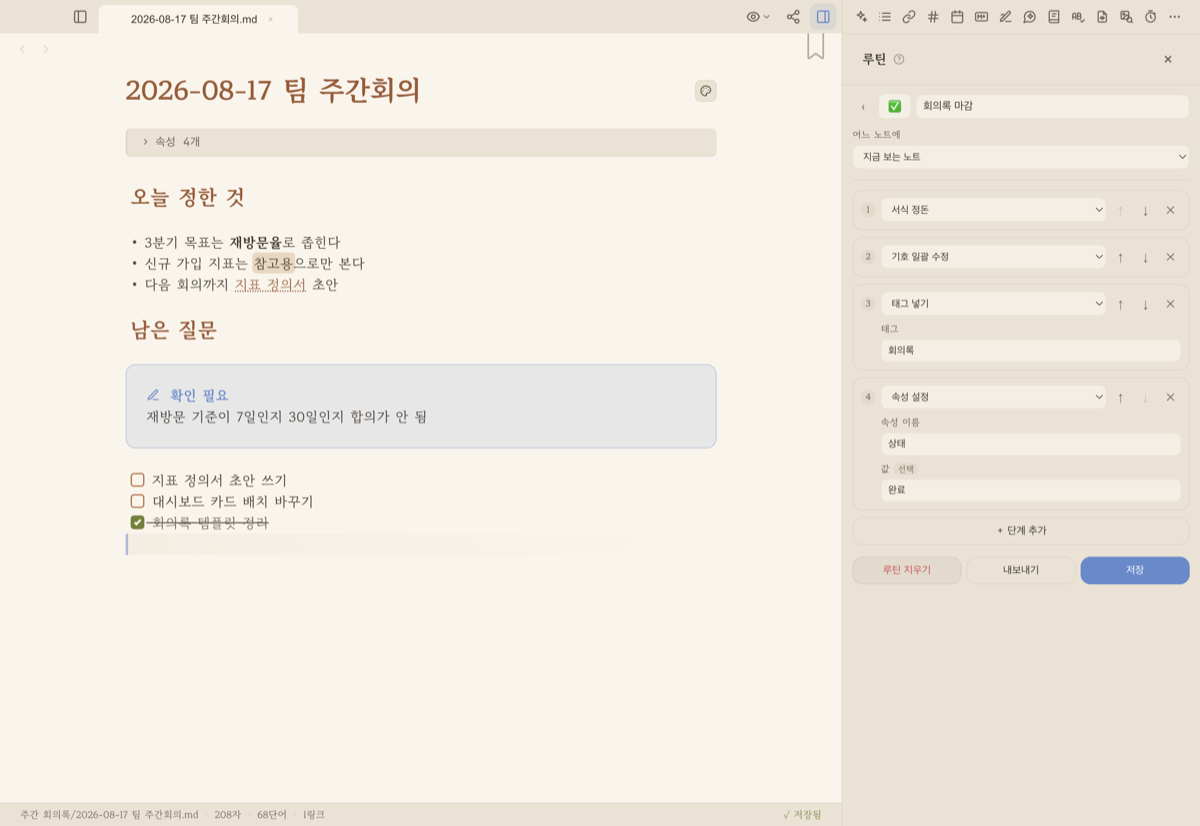
▲ Which note · what to do · in what order. Pick from the lists and the routine is done.
Now just press the routine in the list. 🎉
The ▶ at the right end means "press to run". Anywhere on the row works.
As they pile up — group them 🗂️
More routines, longer list. Collapsible groups let you keep open only what you're using.
- “Favorites” and “General” are there from the start. Star (☆) a routine and it moves up to Favorites; anything you haven't sorted stays in General.
- 📁 New group at the top of the panel creates one and lets you name it right there. (Just like “New folder”.)
- The + beside a group name makes a new routine already in that group.
- ✎ renames it, and ✕ — visible while renaming — deletes the group. The routines inside are not deleted; they move to “General”.
- Collapsed state is remembered, and the Group field in the editor moves a routine any time.
A group travels with the routine in your vault, so other devices on the same vault see it too.
(Different vaults never mix. Only an empty group — one with no routines yet — stays on that device.)
3️⃣ Where can I run it? 🚀
| Do this | And it runs |
|---|---|
| Press it in the list in the Routines panel | the usual way |
Command palette ⌘P → Routine: name |
without leaving the keyboard |
| Right-click in the note → Routines ▸ | mid-writing (⭐ favorites only) |
| The starter row on the welcome screen | right after opening a vault |
⭐ Mark a routine as a Favorite and it moves to the top of the list — and shows up in the right-click menu and the welcome screen.
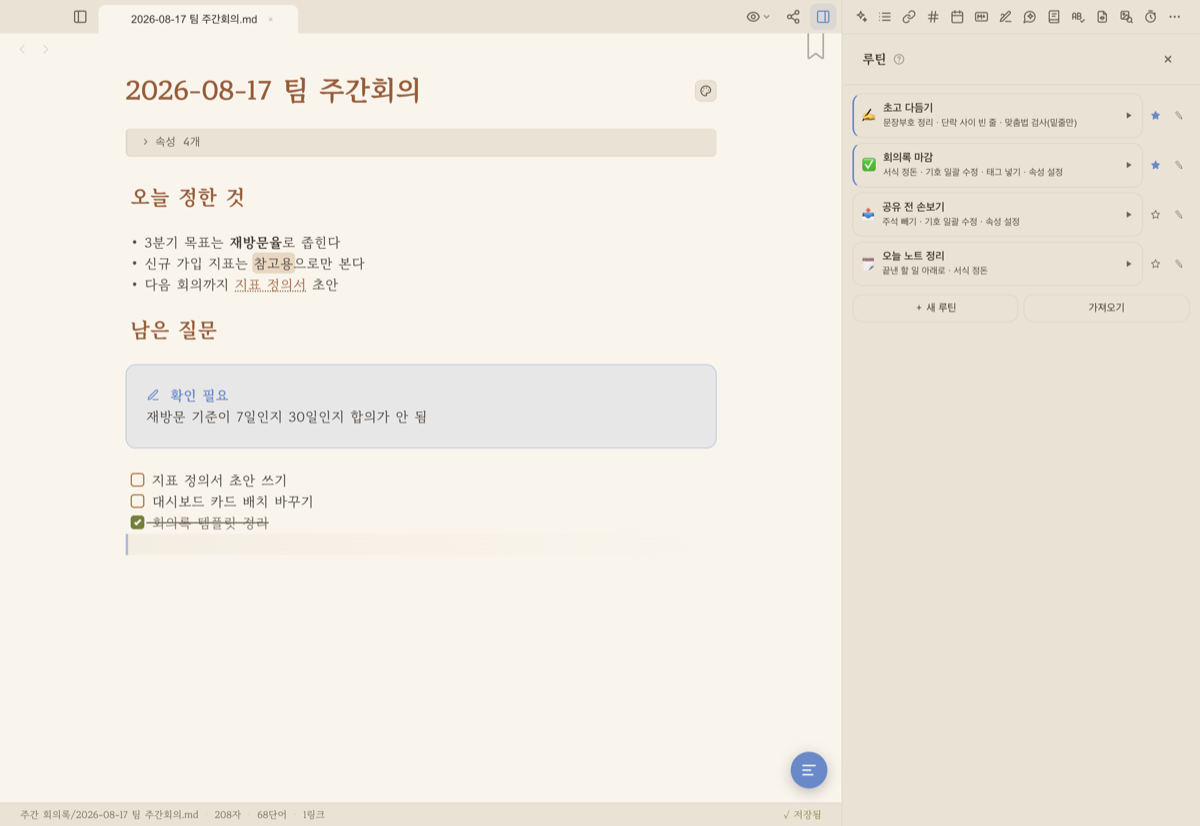
▲ Each row summarises its steps. Press ▶ and they run in that order.
The right-click menu only lists routines that target the note you're viewing.
Right-clicking in a note means "do this to this document", so a routine that creates a new note there would quietly edit the wrong file. 😉
4️⃣ Which note? — picking the target 🎯
A routine edits exactly one note. It's fixed the moment you press Run, and opening another note halfway through won't touch it.
| Target | What it means |
|---|---|
| The note you're viewing | the one that's open (what you'll use most) |
| Today's note | today's dated note — created first if it isn't there → 13 Calendar |
| A note you choose | always the same note (e.g. Work/Journal.md); start typing and pick it from the list |
| Start in a new note | makes a fresh note each run and works in that one |
5️⃣ What can it do? 🧰
Steps are grouped by what they're for — just pick.
✏️ Polish the writing
| Step | What it does |
|---|---|
| Tidy formatting | safe cleanup of blank lines, headings, property lines |
| Fix symbols | ...→…, straight quotes→curly, ->→→ |
| Tidy punctuation | !!!→!, spacing around punctuation |
| Replace a word | find → replace (leave it empty to delete) |
| Remove bold, italic, highlight | strips the decoration, keeps the words |
| Remove Markdown syntax (text only) | plain text, all the way |
| Remove frontmatter (properties) | the whole property block at the top |
| Remove comments | %%notes%% and <!-- --> |
| Indent paragraphs / Remove indents | first-line indents |
| Blank line between paragraphs | one empty line between paragraphs |
📝 Add content
Set a property · Add a tag / Remove a tag · Add to the top · Add to the end · Insert a template · Add under a heading · Set note colour · Mark as verified
✅ Tasks
Move done tasks down · Clear done checkmarks
🎭 Story
Remove character tags · Remove background tags — strips the <<name:image>> tokens the story views use → 18-3 Messenger & Visual Novel Views
🔖 Mark & check
Bookmark · Spell check (underline only) · Spacing check (underline only) → 06 Korean Writing Tools
🍅 Focus
Start focus timer · Start character counter → 14 Focus Timer (Pomodoro) ⏱
The two checks only underline — they never edit your words. Whether to accept a suggestion is your call.
(The spacing check is desktop-only.)
6️⃣ Ask me when it runs 💬
Small chips under a value field insert auto-fill expressions.
| Chip | Inserts | What happens |
|---|---|---|
| Ask when it runs | {{ask:question}} |
a prompt appears the moment you run it |
| Use the run date | {{date}} |
that day's date goes in |
So if the text field of Add to the end says:
## {{date}} progress
{{ask:What did you get done today?}}
…every run asks you, and the answer lands under today's date. 📅
Several questions are asked on one form, together. Cancel and nothing is edited at all.
7️⃣ Writing a series? — automatic numbering 📚
Press the {n} button to the right of the title field in Start in a new note. No syntax to
memorise — pick what you see and it goes in at the cursor.
| Pick this | And you get |
|---|---|
1, 2, 3 |
Ch. 1 → Ch. 2 → Ch. 3 … |
01, 02, 03 |
01 Part → 02 Part … (padded to width) |
001, 002, 003 |
001 → 002 … |
Put text around it however you like (Episode {n}), and (n), [n] and <n> all work the same
— use whichever bracket is easiest to type. 😉
Want to start at 51? — Start at 🔢
Moved a series over after 50 chapters elsewhere? Put 51 in Start at, right under the title.
- It's a floor, not a fixed value — 51 → 52 → 53 from there.
- If the folder already has Ch. 60, you get Ch. 61 (a bigger number always wins).
- Leave it empty for 1. With no number token in the title this field has nothing to do, so it dims.
See it before you press 👀
Under the title you get Run now → Ch. 51.md — and why that number.
2 matching in this folder · highest number 52, for example.
Nothing matchingmeans the prefix or suffix differs, so nothing was counted (Side story 3is not aCh. {n}).
Meeting (n th)and the like are left as plain text — only brackets holding nothing butncount as a token.
When you use several devices 📱💻
If the same vault is open on more than one device, this device may not have seen an episode the other
one just made (sync may have only finished a moment ago, or the folder listing may still be arriving).
- Your episodes still won't collide — ObsiKO tries to create the file, and if that name is taken it moves to the next number.
- When that happens you'll see
Skipped numbers already in use — Episode 3. That's why the result can differ from the preview. - One thing we can't prevent: if you run the routine on two devices at almost the same moment, neither has
seen the other's file yet, so both may pick the same number. Running a serial routine from one device keeps it simple.
8️⃣ Why it's safe to lean on 🛡️
| The promise | What it means |
|---|---|
| You always press Run | there is no scheduled or automatic run |
| One note only | it never edits several notes at once |
| Everything is checked first | if a single step can't run, it doesn't start at all — no half-applied note |
| Undo in one go | ten steps still land as one entry in change history; revert it and you're back |
| Safe to run again | tags and text that are already there are skipped |
| Stop mid-run | press "stop after this step" while it's running |
⚠️ Three exceptions do add again on a second run — Insert a template, Replace a word, and Start in a new note.
Those steps carry a note in the panel, so it won't surprise you. 😊
9️⃣ What it won't do (honestly) 🙅
- ❌ Vault-wide tidy or find-and-replace (those live in the command palette)
- ❌ Delete or move — routines never remove or relocate a file
- ❌ Editing several notes at once
- ❌ Conditions or loops
- ❌ A routine calling a routine — which is exactly why an endless loop can't happen
None of this is missing by accident — it's left out on purpose, so an unrecoverable accident has nowhere to start. 🙂
🔟 Share one, receive one 📤📥
- Export at the bottom of the edit screen saves an
.oroutinefile. - Import under the list opens one — and shows you what's inside first.
- Steps that don't work on this device, or that point at notes this vault doesn't have, are flagged before you accept.
- A name clash never overwrites; you get a
(2)alongside.
Routines live in your vault at
.obsiko/routines/, one file each. Devices sharing that vault pick them up on their own. ☁️
1️⃣1️⃣ Ask the AI to build one 🤖
"Make me a routine that tidies formatting and adds a tag when I wrap up for the day"
The AI will build and save it for you. → 16 AI Agent
- Afterwards it summarises the steps it made and does not run it — running is always yours to press.
- An existing name is never overwritten.
1️⃣2️⃣ Recipes 🍳
Wrap up a chapter
The note you're viewing → Tidy formatting → Fix symbols → Add a tag (
done) → Set a property (status=done)
Start a new chapter
Start in a new note (
Ch. {n}, folderSeries) → Insert a template → Start focus timer → Start character counter
Open today's journal
Today's note → Insert a template → Add to the end (
{{ask:What's today's goal?}}) → Start focus timer
Finish meeting notes
The note you're viewing → Move done tasks down → Add under a heading (
Decisions) → Bookmark
Pre-revision check
The note you're viewing → Tidy punctuation → Spell check (underline only) → Spacing check (underline only)
Make plain text to paste elsewhere
A note you choose → Remove Markdown syntax → Remove frontmatter (properties) → Remove comments
❓ Common questions
Q. It ran but said "the note is unchanged".
A. Every step you used was one that doesn't edit text — a check, a bookmark, a timer. That's normal! 😊
Q. What about "there was nothing to change"?
A. It was already tidy and already tagged, so there was nothing left to do. That's proof it's safe to run again.
Q. It won't start at all.
A. The pre-run check found a step it can't do. It tells you which step and why, so fix that one field.
Q. I ran the wrong one! 😱
A. Revert that single entry in change history. However many steps ran, one revert takes you back.
Q. Can it run automatically every day?
A. Deliberately not. Your notes shouldn't change while you're not looking. Mark it ⭐ Favorite instead — it's one press away from the welcome screen and the right-click menu.
← Previous: Review & Rediscovery · Home · Next: AI Agent →