 ObsiKO
Calendar 📅
"I know I wrote that note last week... where is it?" Let the calendar panel find your notes by date, and lay out today's to-dos on a timeline while it's at it!
← Home: ObsiKO 101
Where do I open it? 🔭
- Open the right sidebar panel and pick Calendar from the navigation. → A Tour of the Screen
Today's diary — today's note ✍️📅
- Click the calendar+ button in the calendar panel header (next to the ✕ close button) to instantly create and open today's dated note (like
2026-06-28.md)! If it already exists, it just opens that note. - You can call up the same thing from the command palette (
Mod+P) with "Open today's note." - You can choose which folder these notes are saved to in Settings → Today's note folder (leave it blank for the vault root). Keep your daily records tidy in one place! → Settings & Themes
- You can choose the file-name format too (Settings → Today's note title format):
2026-08-29(default),2026.08.29,20260829,2026-08-29 Sat— or type your own. The resulting file name is shown right below as you choose. - Existing notes are never renamed (that would break
[[links]]in your text). Only new notes use the new name, and the calendar and "photo of the day" still recognise the old names (2026-08-29) — so changing the format never splits a day into two notes. - This setting is remembered per device. If you use several devices, set the same format on each.
-
You can also set a template for today's note (Settings → Today's note template). Click the field and the notes in your template folder drop down as a list, so there's no path to memorize — just pick one (keep your template somewhere else? type a name and it searches the whole vault). Placeholders inside it like
{{date}},{{weather}}, and{{ask:Today's goal}}get filled in when the note is created — see the placeholder list in 03 Markdown Basics. Leave it empty for just the date heading. -
Bring over yesterday's unfinished tasks? 🔄 When you open today's note, if the most recent daily note (within 14 days) still has unfinished tasks, ObsiKO offers to bring them along. They are moved, so they leave that older note (changed your mind? revert it from the change history). Don't want to be asked? Turn off Settings ▸ Today's note ▸ Offer task rollover.
-
A nudge at the time you choose 🔔 Turn on Settings ▸ Today's note ▸ Writing reminder, pick the days and a time, and a "Time to write today's note" reminder arrives then. Tap it and today's note opens right away (it's created at that moment if it doesn't exist — the reminder never pre-creates notes or writes for you). You can also switch Opens to This week's note or Review cards.
- On iPhone and Android it arrives even when the app is closed. On computers and the web it only arrives while ObsiKO is open, and a reminder more than an hour late is skipped rather than piled up.
- The setting is saved per device — so another device sharing the vault doesn't ring the same reminder again.
- Want today's note to be the first thing you see? Settings ▸ Basics ▸ Startup screen ▸ Today's note → Settings & Themes
This week's / this month's note 📅🗂️
- Switch the calendar panel to week or month and a
Weekly note/Monthly notebutton appears under the grid. It opens the note for the period you're looking at, and creates one only if it doesn't exist yet (nothing is pre-created, nothing is backfilled). - You can also use "Open this week's note" / "Open this month's note" in the command palette, or the sidebar + menu ▸ Date notes (today / this week / this month).
- File names are
2026-08-17 Week.md(the first day of that week) and2026-08.md. If your week starts on Sunday, the Sunday date is used — so the note always covers exactly the week you see in the calendar. (Changing the week start changes the name of future weekly notes; existing notes are left alone and we tell you.) - The folder is shared with today's note (Settings → Today's note folder); weekly and monthly templates are set separately. Leave them empty and you get a single heading with the date.
What does it show? 🗓️
- Every document in your vault is scattered across the calendar by its creation date (or modified date). Days you wrote something show a marker, so you can spot them at a glance.
- Days with a task (to-do) get a marker too. Just glancing at the calendar tells you what's going on that day!
- Today's date is selected by default.
- Ledger net-amount badges too 💰: if you keep a Ledger, a net-amount badge for that day appears in the corner of each date cell — blue for income, red for expense (big amounts shown compactly, like
1.2M). Pick a date and that day's entry summary shows up too. If it feels busy, turn it off with Settings → Calendar → 'Ledger amount badges'. - Project date spans show as bands 📏: notes with a
start~due(deadline) in their frontmatter (like PARA'spara: project) show that whole start-to-deadline period as a band — so you can see right on the calendar when to start and when it's due (and the same goes for the day/week/month calendars on the Dashboard!). → PARA
Try clicking around 👆
- Click a date → see the list of documents written (or edited) that day, plus that day's timetable!
- Click a month name → gather every document from that whole month!
- Click a year → pull up the entire year's documents at once!
- Click any document in the list to jump straight into the editor.
▲ Browse notes by date, and see today's to-dos laid out on a timetable at a glance.
Today's timetable ⏰
Pick a date and a timetable unfolds, laying out that day's tasks (to-dos) in chronological order.
- Timed tasks are lined up in time order, while tasks without a time are grouped at the top in an All Day slot.
- Tasks happening right now are highlighted in a box so it's easy to notice, "Oh, this is what I should be doing right now!"
- Hover over a task to see a tooltip with detailed info (due/start/scheduled date, priority, recurrence, ID/dependency, alarm, and more).
- Click the checkmark in front of any task to flip its status instantly. Right-click (or long-press) to bring up a menu for Mark done / Undo done / Cancel task / Open. (Your scroll position is preserved so the screen doesn't jump when you change a status!)
- Recurring tasks automatically reappear each day/week/month according to their set rule.
How do I add a task (to-do)? ✍️
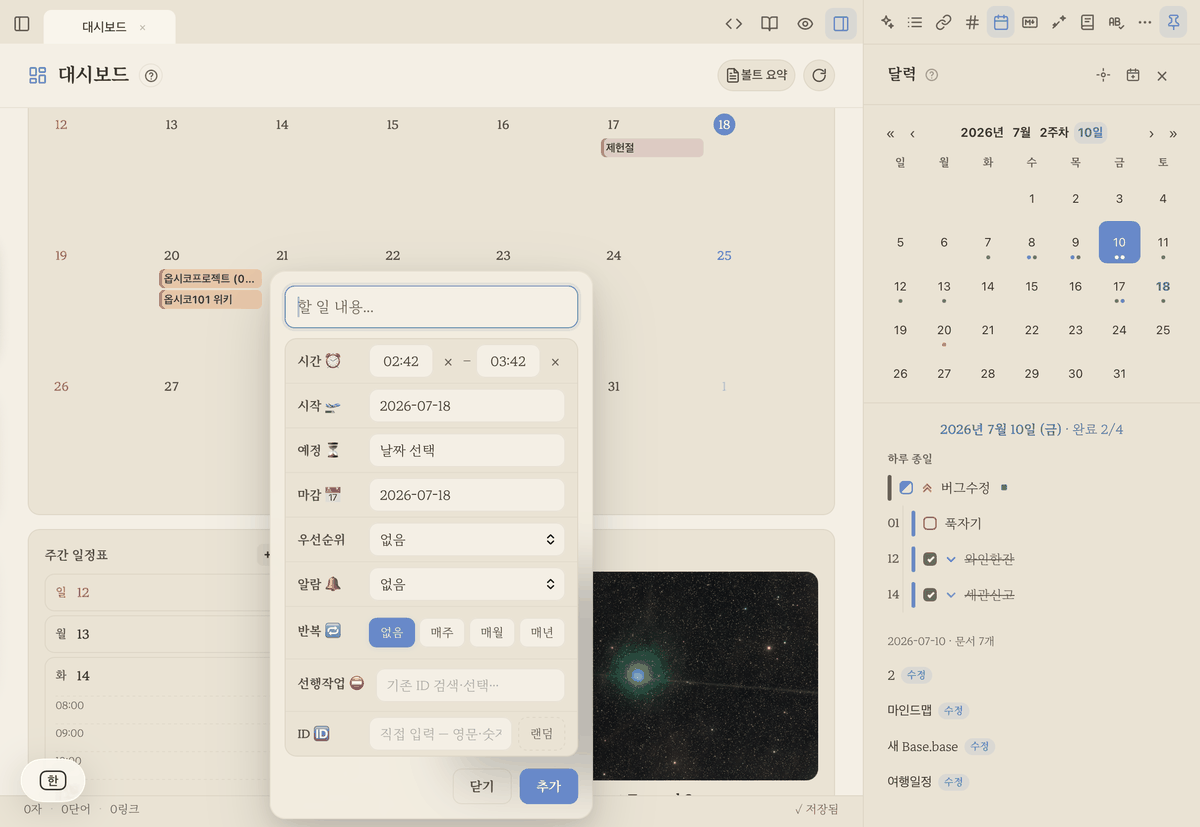
A task is ultimately just one checkbox line in the body text (- [ ] Task). You can type it by hand, but the compose helper makes it much easier.
- In the editor, right-click (or long-press) → "Add task" to open a small composer.
- A few clicks there neatly assemble a to-do line with the info below, and it drops right into place at your cursor.
- Type & date: choose from Due 📅 / Scheduled ⏳ / Start 🛫 and set the date
- Time ⏰: start/end time (e.g. 14:00–15:30)
- Priority: 🔺 Highest · ⏫ High · 🔼 Medium · 🔽 Low · ⏬ Lowest
- Recurrence 🔁: pick a frequency (weekly/monthly/yearly) and tick specific days — pick every day of the week for daily, or just Mon–Fri for weekdays.
- Alarm 🔔: relative to start/end time — on time, 5/10/30 minutes before, 1 hour before (also 1 day before, relative to start) (see below)
- ID 🆔 · Dependency ⛔: for chaining tasks in order (see below)
- The finished line renders as a nicely formatted task card in the editor, and the same content shows up right away in the calendar's timetable too.
Add several at once by voice 🗣️
Pick "Add tasks by voice or text" in the command palette and an input bar docks at the bottom of the screen (no new window). On Android, tap the bar's 🎤; on iPhone and iPad, use keyboard dictation — or just type.
- Pick where it goes with the chips above the bar — today's note (the dated note, default) or this note (the end of the note you're looking at). Your last choice is remembered.
- Say one thing and it goes straight in. "submit report tomorrow" → one line
- [ ] submit report 📅 …in tomorrow's note. Before saving it shows where it will go, and afterwards you can press Undo. - Say several at once and they appear split above the bar. "call mom tomorrow and pay rent on friday" → two lines. Tap a date to change it, untick anything you don't want, press Merge if something was split wrongly, then one Enter puts each into its own date's note. For one item per line, use ⇧Enter for a new line.
- If something is unclear, it doesn’t guess. "meeting at 3pm" gets 3:00 PM, but a bare "meeting at 3" keeps the words in the text exactly as you said them, with no time set. (In Korean and Japanese, "3시" / "3時" shows [3:00 AM] [3:00 PM] chips to pick from.)
- Tasks without a date, and anything starting with
note:, go to today's note. Undo only works if you haven't edited that note in the meantime (so it never deletes your own edits).
💡 A task isn't some special file — it's just a plain Markdown checkbox. That means it's compatible with Obsidian's Tasks syntax, and the calendar will scoop it up and display it no matter which note you wrote it in.
Never miss it — alarms 🔔
Set an alarm on a timed task, and a notification will go off at the scheduled time.
- In the composer's Alarm 🔔 field, just pick something like "10 minutes before" or "1 hour before" — that's it!
- On iPhone/iPad, alarms fire even with the app closed (device notification permission required).
- On desktop/web, alarms fire while the app is open. (Please allow browser/system notification permission once.)
Chaining tasks in order (ID & dependency) 🔗
Use this feature when there's an order to things — "I need to finish this before I can start that!"
- Attach an ID 🆔 (e.g.
design1) to the earlier task, - then in the following task's Dependency ⛔ field, pick that ID to link them,
- and ObsiKO understands the relationship between the two, flagging any task that's still blocked (its predecessor isn't done) with a 🔒 marker.
- Like a wiki link, you can pick the ID from a list of IDs you've already created, so there's no risk of typos. (For easy lookup, we recommend giving IDs readable names!)
Gathering to-dos in one place (Tasks queries) 🔍
Pull to-dos scattered across your vault together into one note, filtered however you like. Just open a tasks code block and add your conditions one line at a time.
not done
due before next week
sort by priority
- Filters:
not done,done,due before <date>,priority is high,path includes <folder>,tag includes #project, and more - Combining: group conditions with AND / OR / NOT / XOR and parentheses, like
(not done) AND (due before tomorrow)orNOT (path includes archive); regex is fine too, likedescription regex matches /pattern/ - Sort, group, limit:
sort by due,group by folder,limit 20 - Set a global filter/global query in Settings to apply a shared condition across every task/query in the vault at once. → Settings & Themes
Compatible with Obsidian's Tasks plugin syntax. Queries you used in Obsidian will work here just as well.
Putting a calendar inside a note (```calendar block) 🗓️
"I want to see the schedule right here in this project note" — open a calendar code block in your note and a calendar appears right there. It draws from your whole vault's events, so there's nothing to copy over.
```calendar
view: month
```
- Five ways to look at it: switch with the Month / Week / Day / Year / Timeline buttons in the calendar's header, and move around with ‹ Today › (it steps by a month, a week, or a day to match the view).
- Your chosen view is saved into the note 📌: pressing a button rewrites the block's
view:line. So it stays that way when you reopen the file, on your other devices, and even when the note sits as a card on a mind map. (It's an ordinary text edit — ⌘Z undoes it.) - Click a day cell to narrow from month → that week → that day. Click an event to jump to that line in its note.
- Timeline groups projects with the tasks inside their notes as bars (projects fold and unfold).
- Double-click an empty spot in the block to open the source (the settings lines).
Lines you can write (all optional):
| Line | Meaning | Example |
|---|---|---|
view: |
which view to start in | month week day year gantt |
date: |
the reference date | 2026-08 2026-08-15 |
title: |
a name above the calendar | This quarter |
done: |
hide finished events | hide |
projects: |
hide project spans | hide |
The Calendar card on the Dashboard is the very same calendar — learn one and you know the other.
Viewing alongside external calendars (ICS subscription) 🌐
You can overlay events from your Google/Apple Calendar onto the ObsiKO calendar too.
- Public holidays are on by default 🎌: with no setup, a country's public holidays appear on the calendar as red dots. At first the country is chosen automatically to match the app language (Korean → South Korea, English → USA, Japanese → Japan), and you can pick a country yourself (26 of them) or turn it off ('Off') in Settings → Calendar → "Public holidays". It's Google's public holiday calendar, so it's separate from any subscriptions you add.
- Paste your calendar's private address (ICS) into Settings → Calendar, and those events show up alongside yours in read-only mode.
- Subscribed events also appear on the Dashboard — its calendar, weekly schedule, and Calendar card (📅 read-only, refreshed every 10 minutes).
- Recurring events are handled properly: daily/weekly (with weekdays)/biweekly/monthly/yearly rules, plus deleted or moved occurrences and cancelled events, computed the same way calendar apps do. Multi-day events span their whole range.
- You can also export your vault's tasks as
.icsto bring them into another calendar app.
Focus & writing records too ⏱️
- Under the calendar, the Focus Log shows how long you stayed immersed with the Focus Timer and how much you wrote with the character counter, all broken down by date! Check "how focused was I that day?" right from the calendar.
Make it your own ⚙️
- Sort by: choose whether documents are grouped by creation date or modified date.
- Week start day: whichever's more comfortable — Sunday or Monday!
← Previous: Knowledge Packs · Home · Next: Focus Timer (Pomodoro) →